You Need to Login First

How to Login

To login to KMCC Portal:

  1. Enter your school email address in “username or email” field. (e.g. ahmed@abaqalilm.com or ahmed@duratalsharq.com)
  2. Default password for the first time is “kmcc@123
  3. You can change your password from “reset password” page.

How to create a new ICT Ticket?

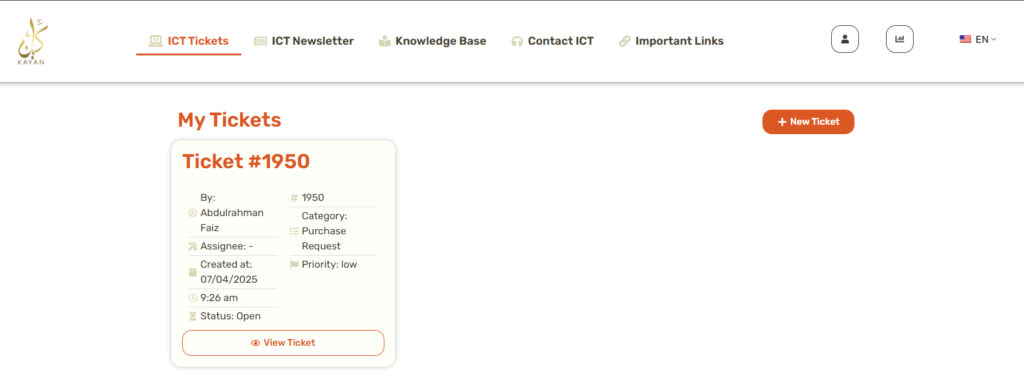
Go to ICT Tickets Page

Click on ( + New Ticket) button

You can see all your previous ICT Tickets here
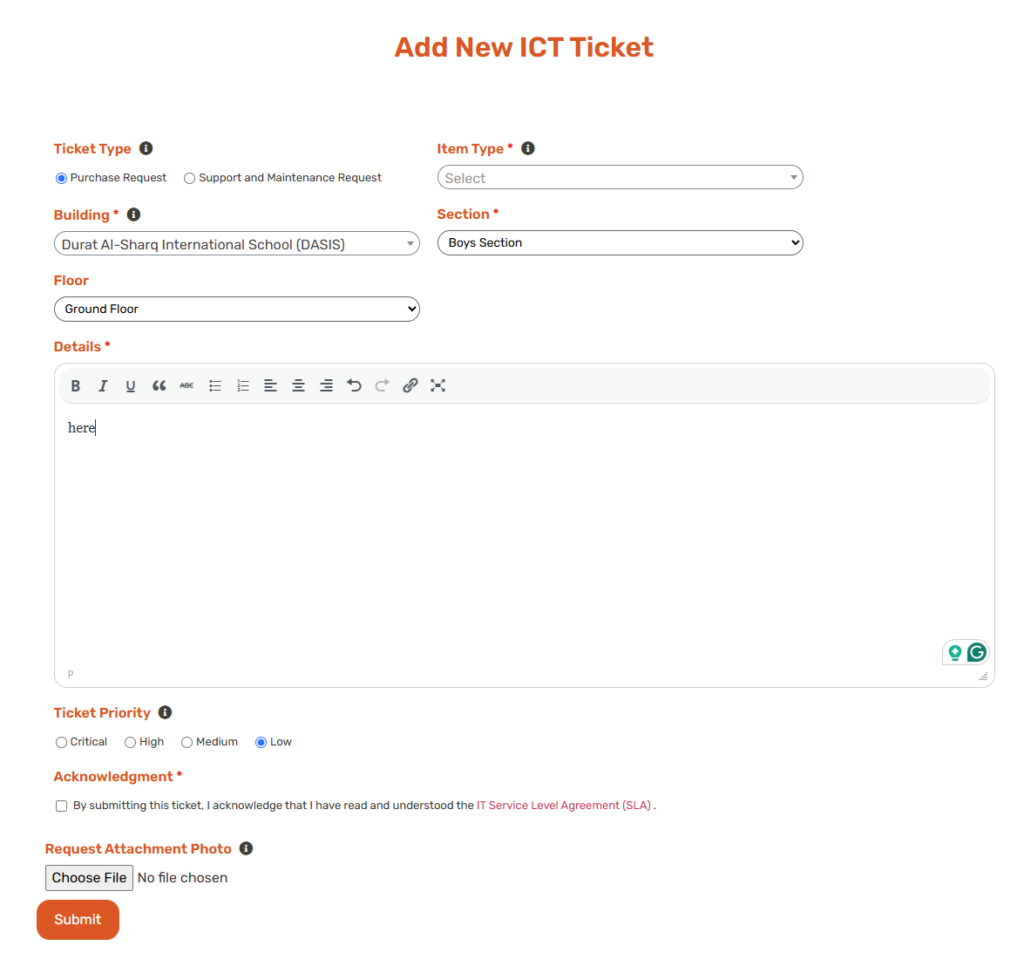
1. Type of Ticket 🎫

there are two types:

  1. Purchase: to request a new item or product.
  2. Support and Maintenance: to get help with the current product or fix an item.
2. Sub-Type 📃

Based on the main type of request, you need to fill out more details about your request. It's better to read the fill dropdown list before selection. 

3. Details ℹ️

Write all the possible details about your request;

More accurate details lead to faster and correct resolution of your ticket. 

4. Optional Attachment 📷

After filling details, you can

Upload a photo to enhance your request.

5. Submit 📤

Agree to the IT SLA, then submit your request
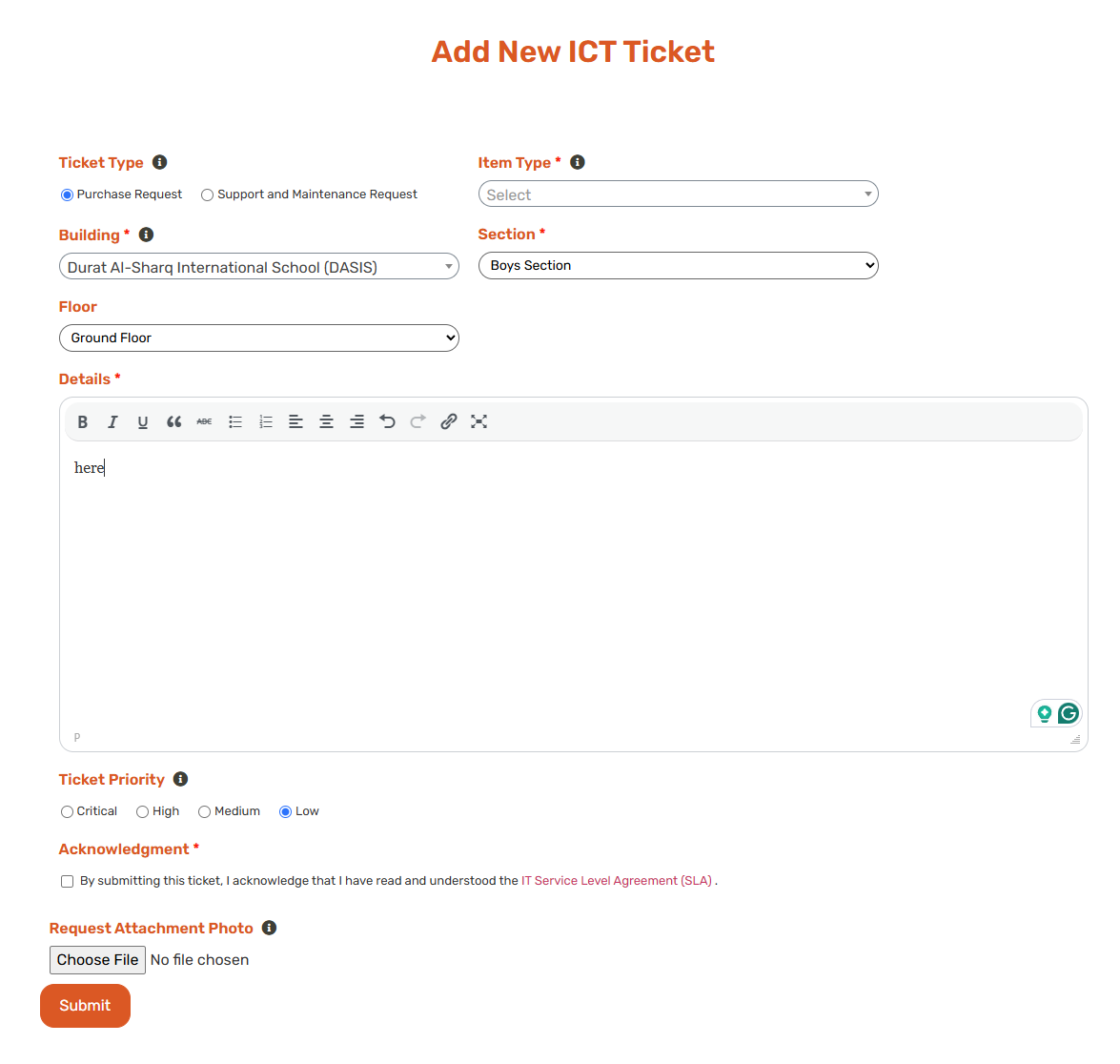
Tutorial video (new ink cartridges request example):

18 Months of Achievement on KMCC Portal 🚀

Over the past 18 months, our IT Department has achieved remarkable progress. A total of 602 tickets were successfully closed with a 99.6% completion rate, and an average user satisfaction score of 4.9/5 across all branches. Thank you for your trust and continued support — we keep improving every day.

What's new

We’ve updated the system with new features and improvements to enhance your experience. Check out our latest changelog to see what’s changed!

لقد قمنا بتحديث النظام بميزات وتحسينات جديدة لتعزيز تجربتكم. اطلع على سجل التحديثات لمعرفة آخر الإضافات!


Your satisfaction matters!

Your satisfaction matters!